Social Accounts
Set up the burner accounts that power social tasks.
Walk through burner accounts, groups, auth testing and proxies in the real Zyper interface. Mock data throughout.
Burner accounts power the social-task subsystem. If you’re running a big sybil WL farm, the usual practice is have a social accounts for each of your wallets for easier tracking. 1 wallet have 1 e-mail address, 1 X account, 1 Discord, and 1 Proxy.
What’s stored per account#
| Field | What it’s for |
|---|---|
| Name | A free-form label |
| Private Key / Wallet | Wallet address submission or doing site signature |
| Gmail Address | Address for submission, connect and login for Google form tasks |
| Gmail App Password | For IMAP purposes, optional |
| X (Twitter) token | auth_token used for X-gated quests and posting |
| X Handle | Renders into {xhandle} . Auto-filled on token verify |
| Discord Token | The user token; used for Discord tasks (join/leave/message/react/etc) |
| Discord Username | Renders into {discord} . Auto-filled on token verify |
| Proxy | Optional; pin a proxy from your Proxies page |
Adding Accounts#
Accounts are also separated by groups. Ideally you derive the group from your wallets group for easier management.
- Click + Add Group and select an EVM wallet group to derived it from.
- When the list is filled with your wallets, click Edit button to attach the socials to a wallet
- Google — Paste the address manually, or use Connect Google to save your Google session (required for google forms that need gmail sign-in)
- X — Paste the handle manually, or use X auth token to save your session (required for X tasks like connecting to X, follow, reply, retweet, tag friends)
- Discord — Paste the username manually, or use Discord token to save your session (required for Discord tasks like connecting to Discord, join/leave server, send messages, react)
- Proxy — Ideally 1 proxy per account to give different IP to each account.
Connect Google#
Google session is usually needed to fill google form where the creator requires email sign-in.
- Click the Connect Google button
- A small browser will pop, login into your Google like normal
- When you’re successfully logged in, close the window.
- The button will change to “Verifying” and “Connected”. The gmail address field will be automatically filled with your address
Grab X Auth Token#
Usually when you buy X burner accounts you get the auth token attached to it, but if you don’t and you need to grab it manually, here’s how :
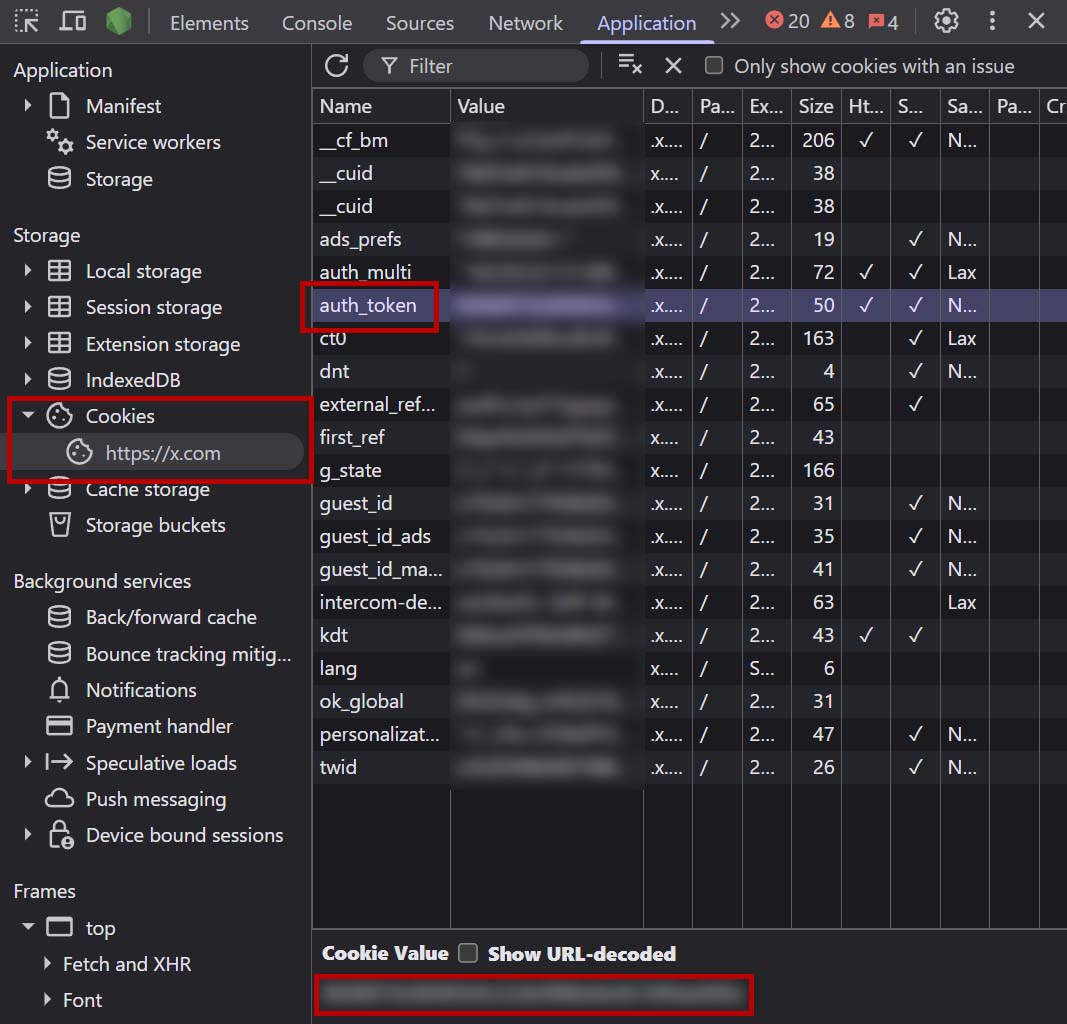
- Open X in your browser and log in to the account you want.
- Press F12 or Inspect to open Developer Tools.
- Go to the Applications tab — if you don’t see it, click the » arrow.
- In the left sidebar: expand Cookies → click
https://x.com. - In the list, find the row named
auth_token. - Double-click its Value and copy the long string (40 hex characters).
- Paste that into Zyper’s X Auth field for the account.
Grab Discord Token#
Usually when you buy Discord burner accounts you get the token attached to it, but if you don’t and you need to grab it manually, here’s how :
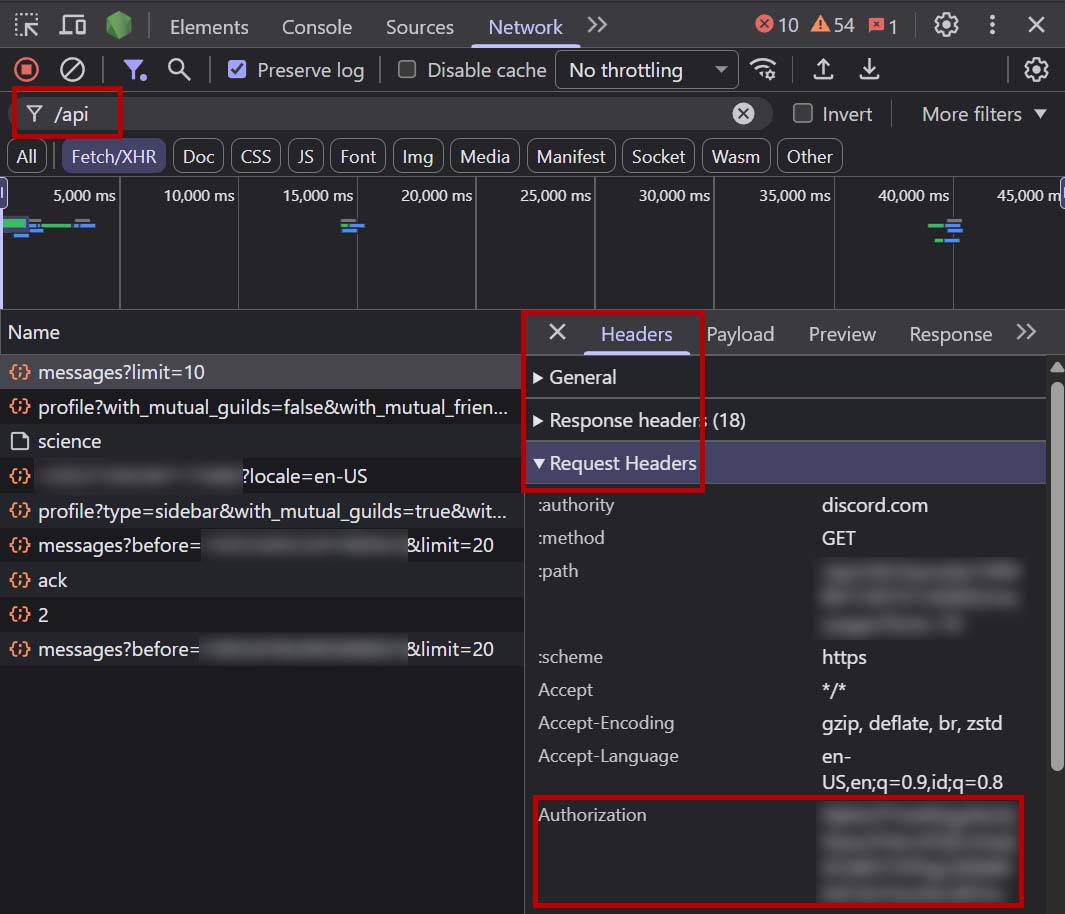
- Open Discord in your browser (the web version, not the desktop app) and log in.
- Press F12 or Inspect to open Developer Tools. Go to the Network tab.
- In the filter box, type
/api. - Click any channel or any DM in your dashboard so requests appear in the list.
- Click any request in the list (e.g.
messages,science,library). - In the panel that opens, go to Headers → scroll to Request Headers.
- Find the line
authorization:— copy the value after it. That’s your token. - Paste that into Zyper’s Discord Token field for the account.
Bulk Connect#
You can select multiple wallets and click Bulk Connect to quickly attach multiple credentials to multiple accounts
Test Accounts#
Each row has a Test button that runs a live auth probe:
- Discord — calls
/users/@me; on success you get a green chip and the display name. - Gmail — runs a headless Chromium session against the Google account picker, using that account’s own profile directory.
- X — calls
/2/users/mewith the token/cookie pair.
The chip shows live status. Re-run it before each batch if you care about pre-flight reliability.
Folder Location#
Accounts are encrypted in the platform data folder:
Windows: %LOCALAPPDATA%\zyper-suite\data\accounts.dat
macOS:   ~/Library/Application Support/Zyper AIO/data/accounts.dat
Each account also gets its own Chromium profile for sites that require a full browser session:
Windows: %LOCALAPPDATA%\zyper-suite\browser-profiles\<account-id>\
macOS:   ~/Library/Application Support/Zyper AIO/browser-profiles/<account-id>/
Browser profiles can contain cookies and are not included in portable backups.