Windows VPS & RDP
Run Zyper on a remote Windows server and choose its region by measured launchpad and RPC latency.
A Windows VPS is a remote computer you rent that stays online in a data center. VPS is optional, but advanced users are all using it so to compete with them on really hyped mints you naturally would need similar setup.
VPS for Dummies, explained#
Most RPC providers and launchpad servers are located in US. For example if you install Zyper in your PC in Asia, your tasks need to travel to US, potentially with high latency (say 400-500ms). So you rent a computer in US, install Zyper in it, and then control that computer remotely from your PC in Asia. That way, your tasks travel way shorter distance because both are in US, sometimes taking under 10ms.
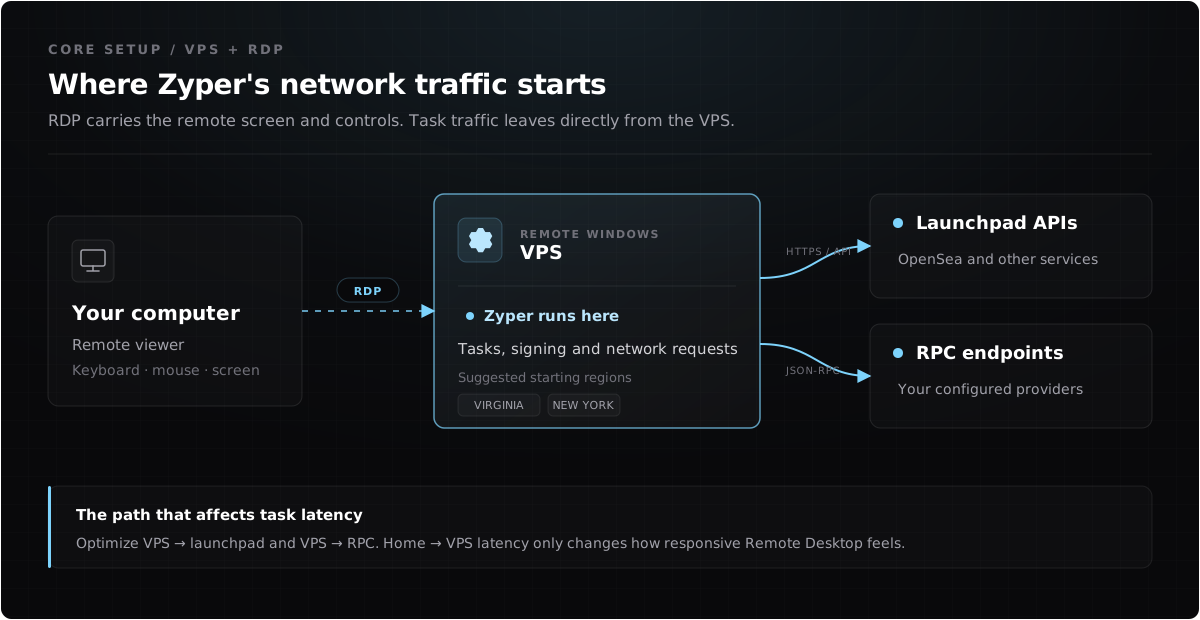
A slow home-to-VPS RDP connection can make the screen feel delayed, but task requests still travel directly from the VPS to the launchpad and RPC providers. What matters are the latency of your VPS → launchpad and VPS → RPC.
Connect with Remote Desktop#
- Provision a Windows VPS with RDP access in the region you want to test.
- On your own Windows PC, open Remote Desktop.
- Enter the VPS IP address or hostname, then the Windows username and password supplied by the VPS provider.
- Inside the remote desktop, follow Install & First Launch exactly as you would on a normal Windows PC.
- Add and test your RPC endpoints, then configure the rest of your Zyper data.
Treat the VPS as a separate machine. Its files, app data, browser profiles and license activation do not automatically sync with your home PC. You can only have 1 device tied to your licese, so if you want to switch around between the Zyper in your VPS and home PC, reset the licensed machine from the dashboard every time.
Disconnect without closing Zyper#
The other advantage of having Zyper in a VPS is you can always leave it running even when you’re away or shut down your home PC. Most VPS providers have their machine always online, so when you are finished, you can disconnect the RDP session without actually shutting down the machine or closing Zyper.
Signing out, restarting, or shutting down the VPS still closes Zyper. Sometimes providers also perform reboot and maintenance that could also shut down or restart the VPS, hence will close Zyper.
For the Windows behavior, see Microsoft’s documentation for
tsdiscon
and RDP session time limits.
VPS readiness checklist#
- Keep Windows Update enabled, but schedule restarts outside important runs.
- Disable sleep and hibernation; a VPS should remain awake when RDP disconnects.
- Confirm Windows time synchronization is working.
- Keep enough free CPU, memory and disk space that Windows is not paging or throttling the app.
- Use a strong, unique Windows password and enable Network Level Authentication when the provider supports it.
- Restrict inbound RDP to your own IP through the provider firewall when practical. Do not expose extra ports just to run Zyper.
- Avoid copying wallet exports or API keys through a shared clipboard. Treat anyone with desktop access as able to control the bot.
- Back up local Zyper data before replacing, rebuilding or deleting the VPS.
RPC placement still matters#
The VPS region cannot fix an unhealthy or rate-limited RPC. Keep multiple good providers ready and use Zyper’s latency and health checks. When Multi-RPC broadcast is enabled, the same signed transaction is sent to the selected endpoints in parallel and the first accepted path wins; it does not remove RPC rate limits or chain-level confirmation time.
Next: Wallets